
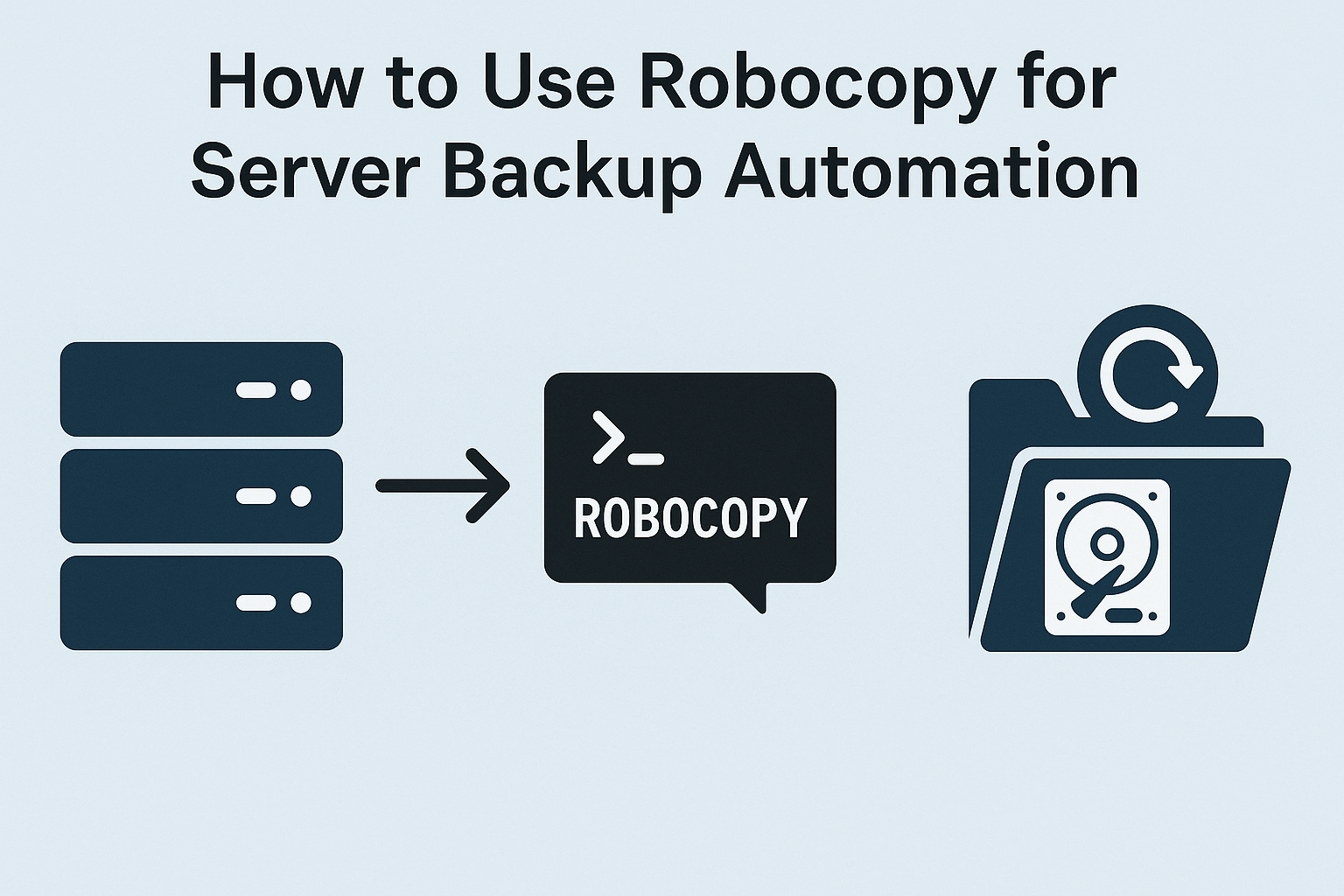
Robocopy (Robust File Copy) is one of the most reliable built-in backup tools included in Windows Server. It allows fast file copying, incremental backup, retry support, and automated scheduling without installing third-party applications.
If you’re running Windows Server and want an easy, script-based backup strategy, Robocopy is one of the best free options.
⭐ Why Use Robocopy for Backups?
Robocopy provides important backup features:
- Handles millions of files
- Supports resume and recovery
- Can mirror folders (1:1 sync)
- Works over network shares
- Fully scriptable (PowerShell / Batch)
- Works with Task Scheduler
For most file-based backup tasks, it’s far more reliable than standard copy commands.
1. Install Nothing – Robocopy is already included
Robocopy is preinstalled on:
- Windows Server 2012+
- Windows 10+
- All modern Windows editions
Just open PowerShell or CMD and start using it.
2. Basic Robocopy Backup Command
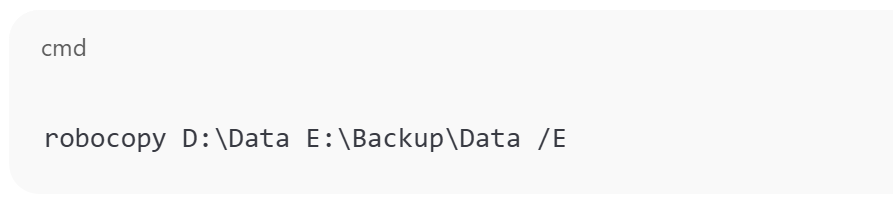
robocopy D:\Data E:\Backup\Data /E
Explanation
| Option | Meaning |
|---|---|
| D:\Data | Source |
| E:\Backup\Data | Destination |
| /E | Copy all subfolders |
3. Use Mirroring for Full Synchronization
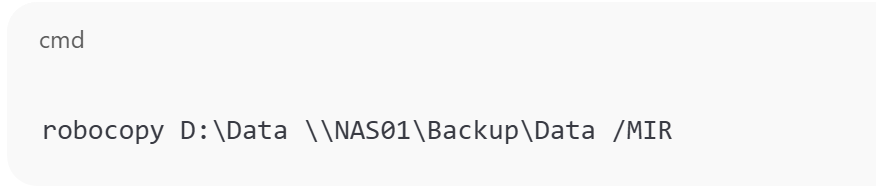
robocopy D:\Data \\NAS01\Backup\Data /MIR
/MIR performs a real backup
- Copies new files
- Deletes removed files from backup
- Creates exact replica
⚠ Warning: unwanted deletes also sync. Use with caution.
4. Robocopy Backup with Logging

robocopy D:\Data E:\Backup\Data /MIR /LOG:C:\logs\backup.txt
This writes a logfile for audit purposes.
5. Only copy changed (new or modified) files
robocopy D:\Data E:\Backup\Data /E /XO
| Option | Meaning |
|---|---|
| /XO | exclude older files |
This makes backup faster.
6. Use Robocopy with Task Scheduler
Automate daily backup:
Steps
- Open Task Scheduler
- Create new scheduled task
- Trigger = Daily
- Action = Start a program
- Program:
robocopy.exe - Arguments:
D:\Data E:\Backup\Data /MIR /R:3 /W:3
Now Windows Server backs up automatically.
7. Example Script (Backup.cmd)

Create a file:
Backup.cmd
Add:
@echo off
robocopy D:\Data \\NAS01\Backup\Data /MIR /R:3 /W:3 /LOG:C:\logs\backup.txt
exit
Save it, run manually, or schedule it.
8. Backup to Network Storage (NAS)
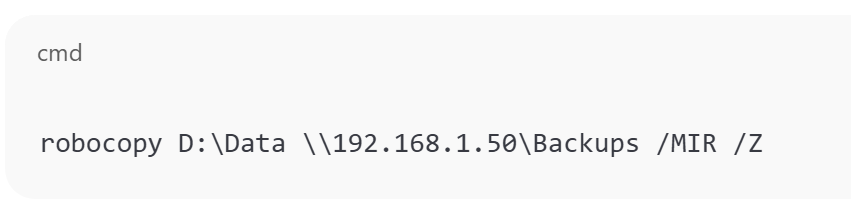
Example:
robocopy D:\Data \2.168.1.50\Backups /MIR /Z
/Z = restartable mode (great for network backups)
9. Important Safety Options
Recommended switches
/MIR /Z /R:3 /W:3 /COPYALL
| Flag | Description |
|---|---|
| /COPYALL | copy permissions + attributes |
| /R:3 | retry 3 times |
| /W:3 | wait 3 sec before retry |
| /Z | resume on interruption |
10. Disaster Recovery Strategy
Typical backup strategy:
| Location | Type |
|---|---|
| Local disk | Fast restore |
| NAS/Share | Same location backup |
| Cloud sync | Disaster recovery |
Robocopy handles the first two easily.
Conclusion
Robocopy is a powerful, built-in Windows Server utility that helps automate file-level backups without installing anything. Combined with Task Scheduler, it becomes a complete backup solution for small and medium environments.
If you need fast, script-based, zero-license server backups — Robocopy is perfect.
How to Use Robocopy for Server Backup Automation (F.A.Q)
Is Robocopy safe for server backups?
Yes, it’s reliable and used widely for file-based server backup automation.
Can Robocopy back up to NAS?
Yes, using UNC paths like \\NAS01\Backup.
Does Robocopy require installation?
No. It is included in Windows Server.
0 Comments